monday.com Integration
Note: You must be an admin user of both monday.com and Pera to perform the operations below.
Overview
The Pera app for monday.com lets you send assessments to candidates, track their progress, and view results — all directly from your Monday board.
Step 1. Install the Pera App
- Go to the monday.com marketplace and search for Pera
- Click Install to add the Pera app to your Monday account
Step 2. Connect Your Pera Account
- After installation, the Pera app settings page will open
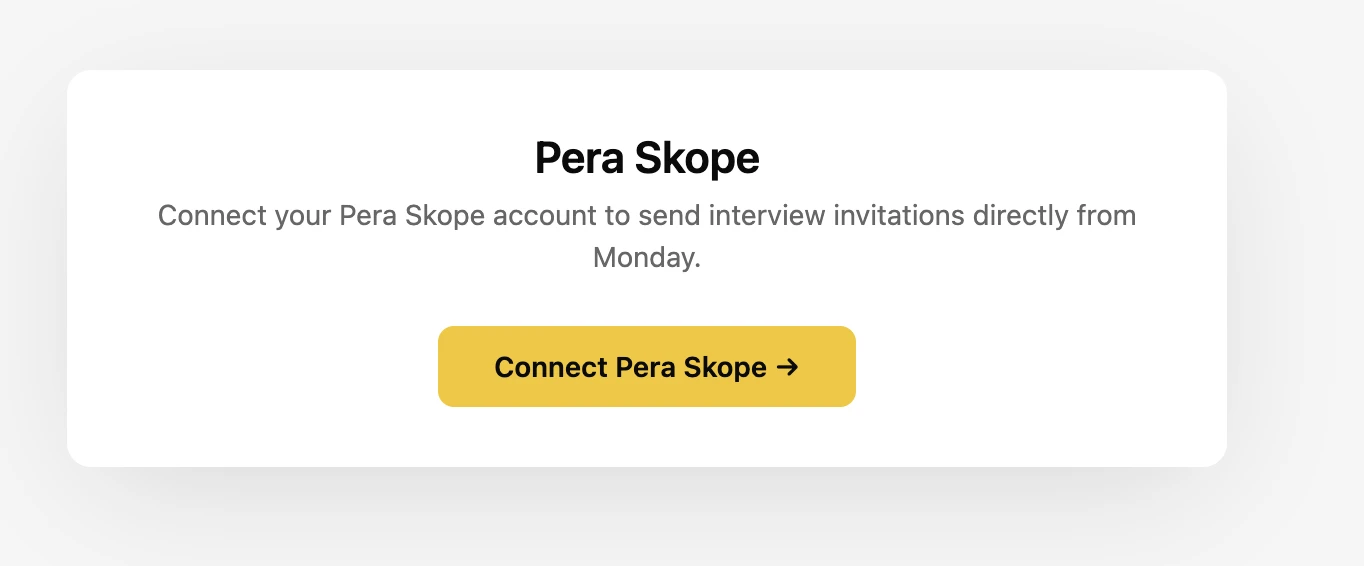
- Click Connect Pera Skope
- Log in to your Pera account if prompted
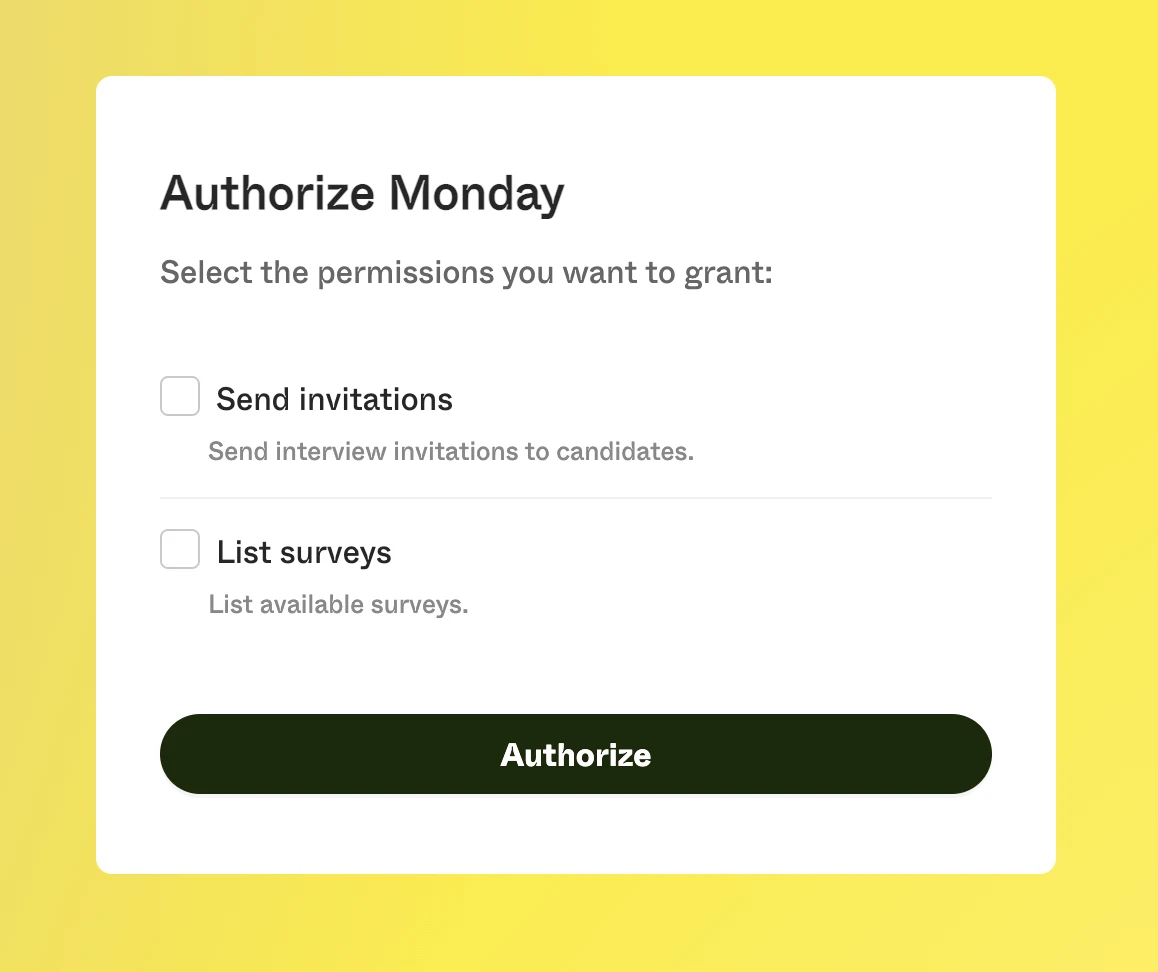
- Review the requested permissions and click Allow:
- Send invitations — allows Pera to send assessment invitations to candidates
- List surveys — allows Pera to display available surveys in Monday
Step 3. Configure a Board
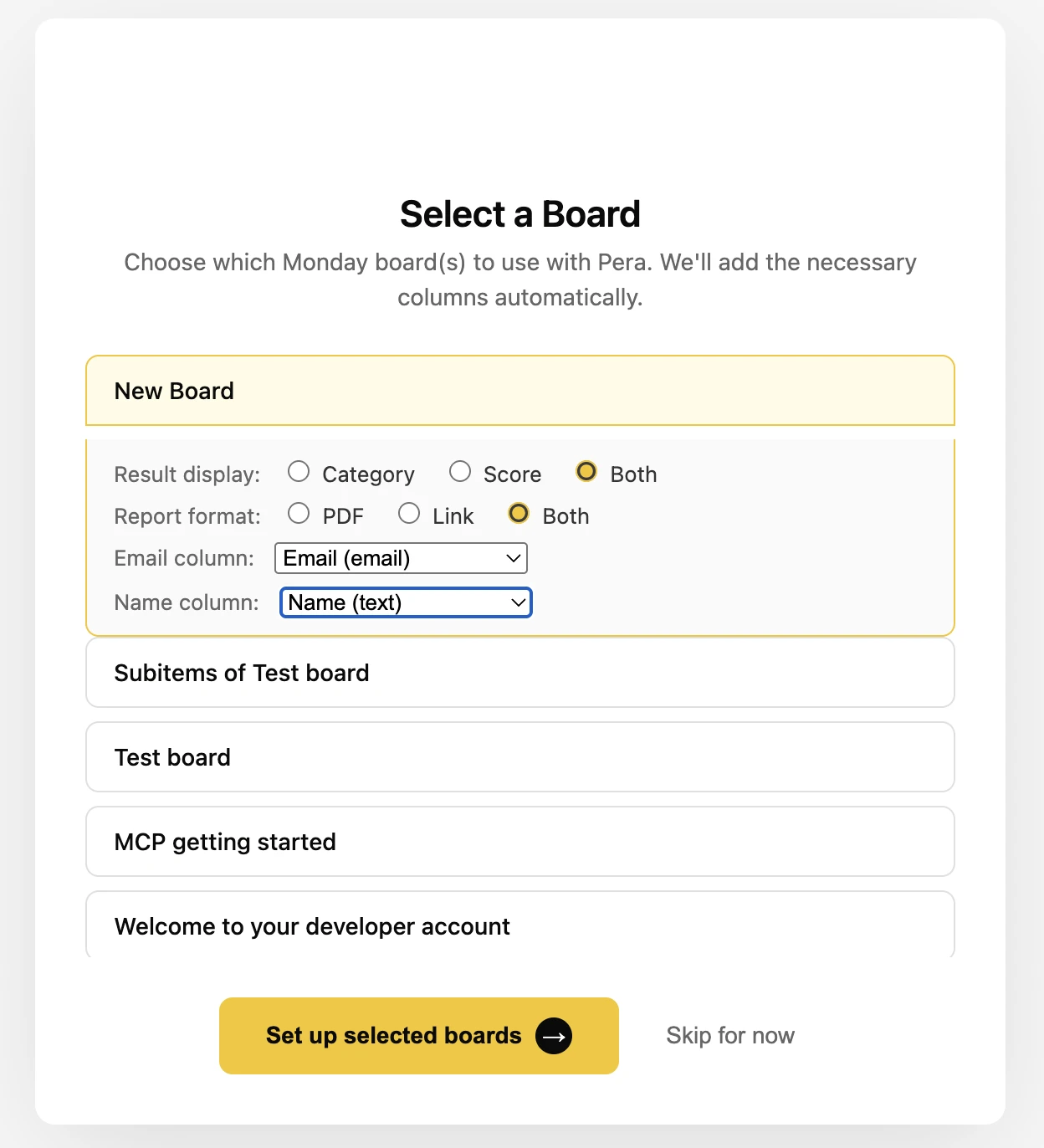
- After connecting, the board selection page will open automatically
- Select which board(s) to use for candidate assessments. Up to 500 boards are shown — only boards that the authorizing user has access to will appear. Private boards or boards without access permissions will not be listed.
- For each selected board, configure the following:
- Email column — the column containing candidate email addresses (required)
- Name column — the column containing candidate names, used to send interview invitation emails
- Result display — Category, Score, or Both
- Report format — PDF, Link, or Both
- Click Set up selected boards
Pera will automatically create the following columns on your board:
| Column | Description |
|---|---|
| Pera Status | Tracks candidate assessment progress |
| Pera Result | Displays the assessment category and/or score |
| Pera Report | Contains the PDF report and/or report link |
Step 4. Send Assessment Invitations
- Open a configured board in Monday
- Click on the Pera app view for a board item
- Select a survey to use for the assessment
- Click Send Invite
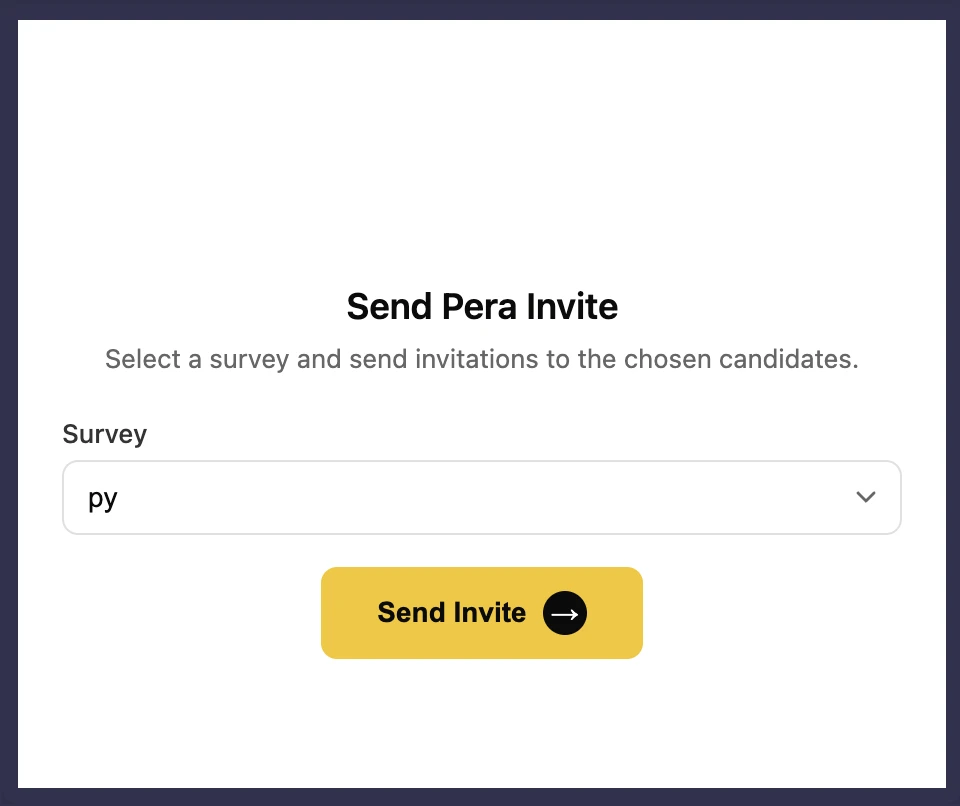
The candidate will receive an email invitation and the Pera Status column will update to Invited.
Step 5. Track Candidate Progress
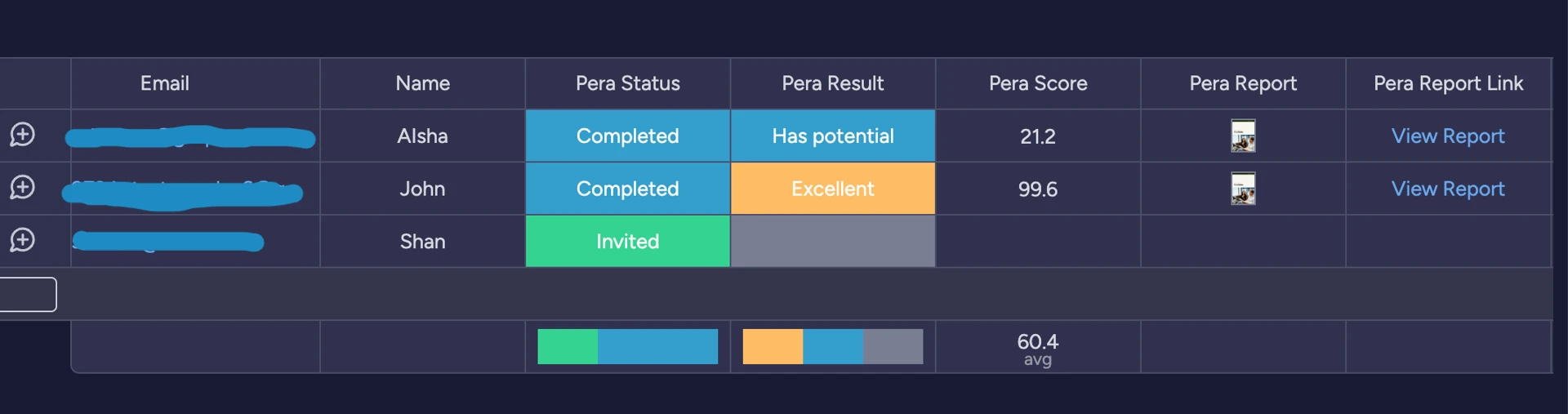
The Pera Status column on your board updates automatically as candidates progress through the assessment. There are four statuses available:
Invited → Started → Completed → Expired
Step 6. Review Results
Once a candidate completes their assessment:
- The assessment score and/or category appears in the Pera Result column
- A PDF report is uploaded to the Pera Report column (if configured)
- A report link is added to view the full HR report in Pera (if configured)
Click the report link to open the detailed assessment results in Pera.
Troubleshooting
| Issue | Solution |
|---|---|
| "Not authenticated" error | Reconnect your Pera account via the app settings page |
| Status column not updating | Check that the board is configured in the Pera app settings |
| Cannot send invitation | Verify the candidate email address is valid and the email column is correctly mapped |
| OAuth connection failed | Ensure you are logged in to Pera as an admin user, then try again |
| Board not appearing in selection | Only boards accessible to the authorizing user are shown (up to 500). Check that the board is not private or restricted. |